

Starting a Training Job
From a processed dataset, you can start training by:- Navigate to your dataset in the System Overview
- Click “Train Model” from the dataset actions
- Configure the model and training parameters
- Start training
Feature Configuration
First, define which dataset columns are outputs vs inputs: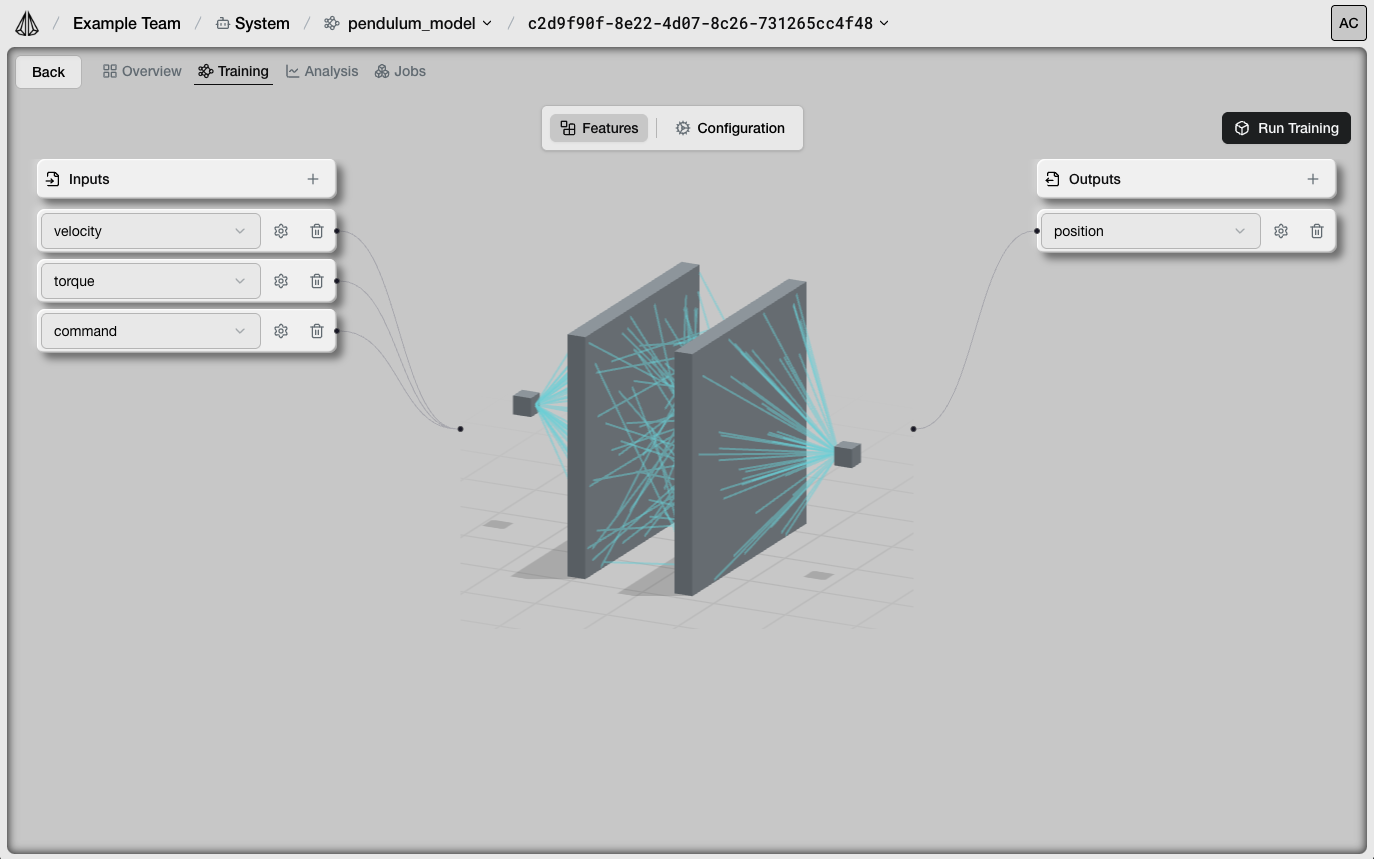
Setting Up Features
Select Outputs
Choose which columns the model should predict (typically derivatives like acceleration)
Define Relations
For state inputs, specify parent features and relation types (derivative, delta, equal)
Example Configuration
For a system with acceleration, velocity, position, and control input:| Feature | Type | Parent | Relation |
|---|---|---|---|
acceleration | Output | - | - |
velocity | Input | acceleration | derivative |
position | Input | velocity | derivative |
control_input | Input | - | - |
Model Configuration
Choose your model architecture and hyperparameters: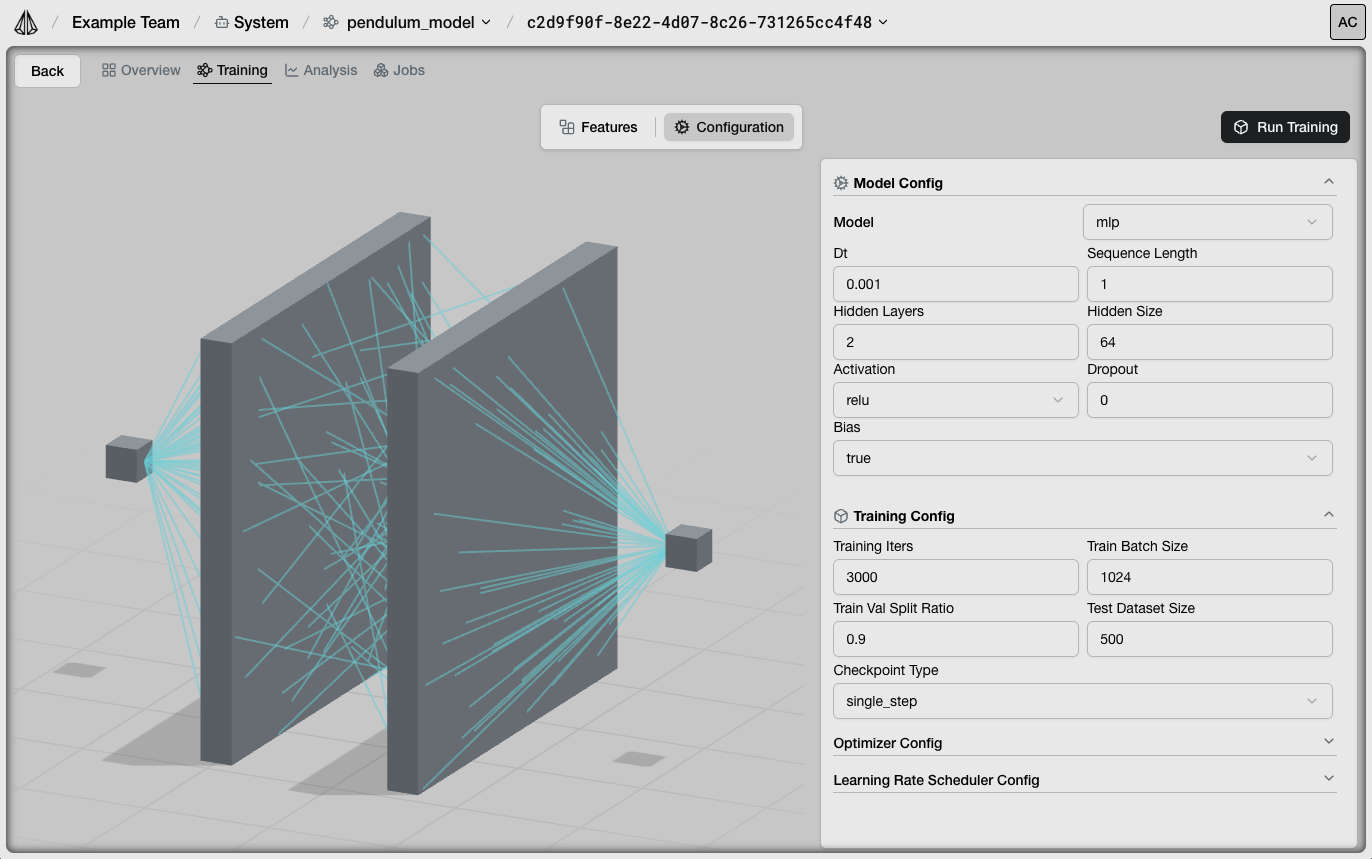
Architecture Selection
Select from:- MLP: Multi-Layer Perceptron (fastest, good baseline)
- RNN: Recurrent Neural Network (LSTM/GRU for temporal patterns)
- Transformer: Attention-based (complex dependencies)
Common Parameters
| Parameter | Description | Typical Range |
|---|---|---|
| Sequence Length | Input history window | 1-16 |
| Hidden Layers | Network depth | 2-4 |
| Hidden Size | Neurons per layer | 32-128 |
| Dropout | Regularization | 0.1-0.3 |
Training Parameters
| Parameter | Description | Typical Value |
|---|---|---|
| Training Iterations | Total training steps | 2000-5000 |
| Batch Size | Samples per batch | 256-1024 |
| Learning Rate | Step size | 3e-4 |
| Checkpoint Type | Optimization target | single_step or multi_step |
Running Training
Once configured:- Click “Start Training”
- The job queues and starts when resources are available
- Monitor progress in the Jobs tab
Monitoring Training
View real-time training progress: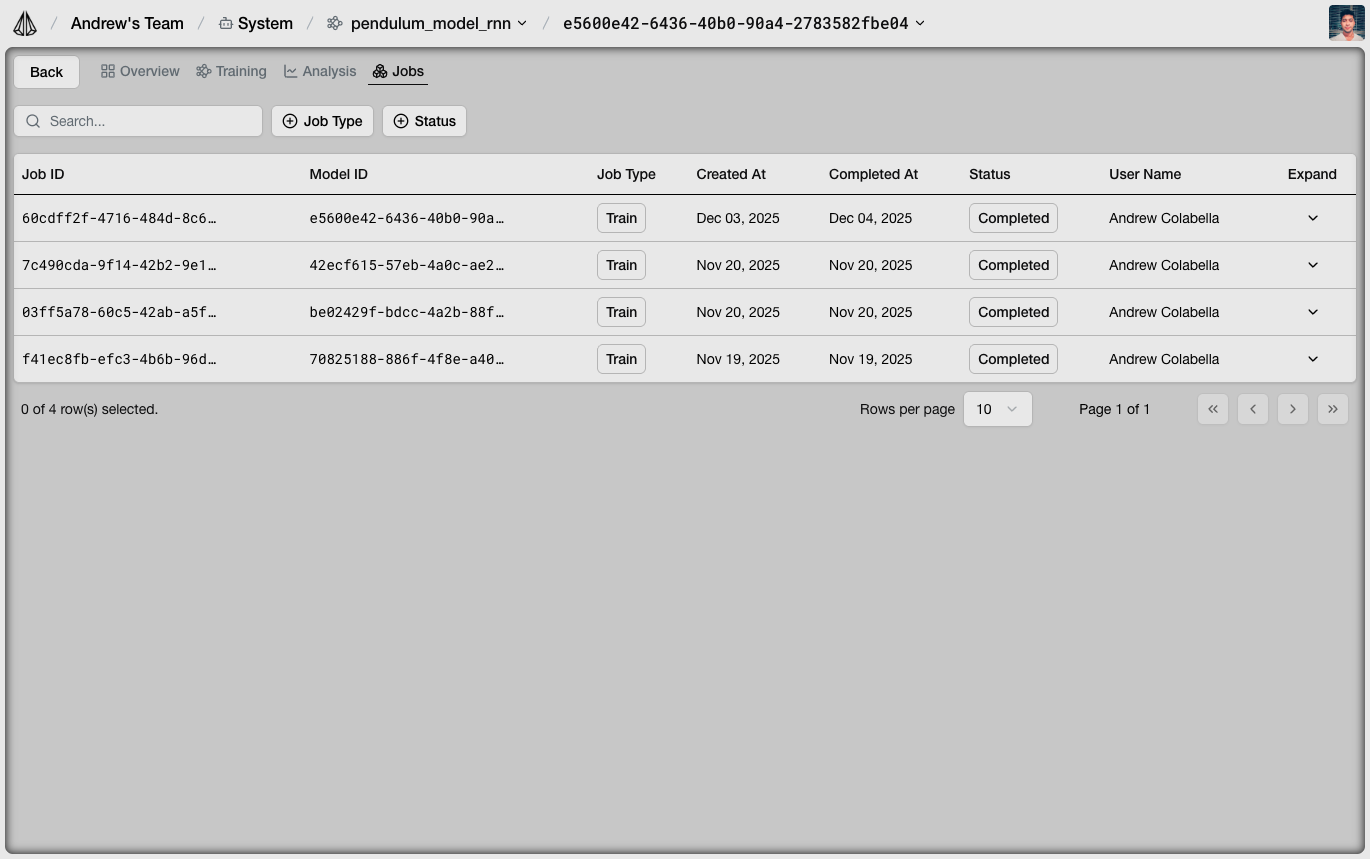
Metrics Displayed
- Training Loss: Error on training data (should decrease)
- Validation Loss: Error on held-out data (watch for overfitting)
- Learning Rate: Current LR if using a scheduler
- Progress: Iterations completed / total
Understanding Loss Curves
Good training
Good training
- Training loss steadily decreases
- Validation loss follows training loss
- Both converge to low values
Overfitting
Overfitting
- Training loss decreases
- Validation loss increases or plateaus
- Fix: Increase dropout, reduce model size, add more data
Underfitting
Underfitting
- Both losses remain high
- Model not learning the dynamics
- Fix: Increase model size, check feature configuration, verify data quality
Training Tips
Start simple
Start simple
Begin with an MLP and single_step checkpoint. Add complexity only if needed.
Verify data first
Verify data first
Check dataset statistics before training. Outliers or incorrect time steps cause poor results.
Use reasonable batch sizes
Use reasonable batch sizes
Start with 256-512. Larger batches train faster but may need learning rate adjustment.
Monitor validation loss
Monitor validation loss
If validation loss increases while training loss decreases, you’re overfitting.
Canceling Training
To stop a running job:- Go to the Jobs tab
- Find your training job
- Click “Cancel”