

Jobs Tab
The Jobs tab shows all training and optimization jobs: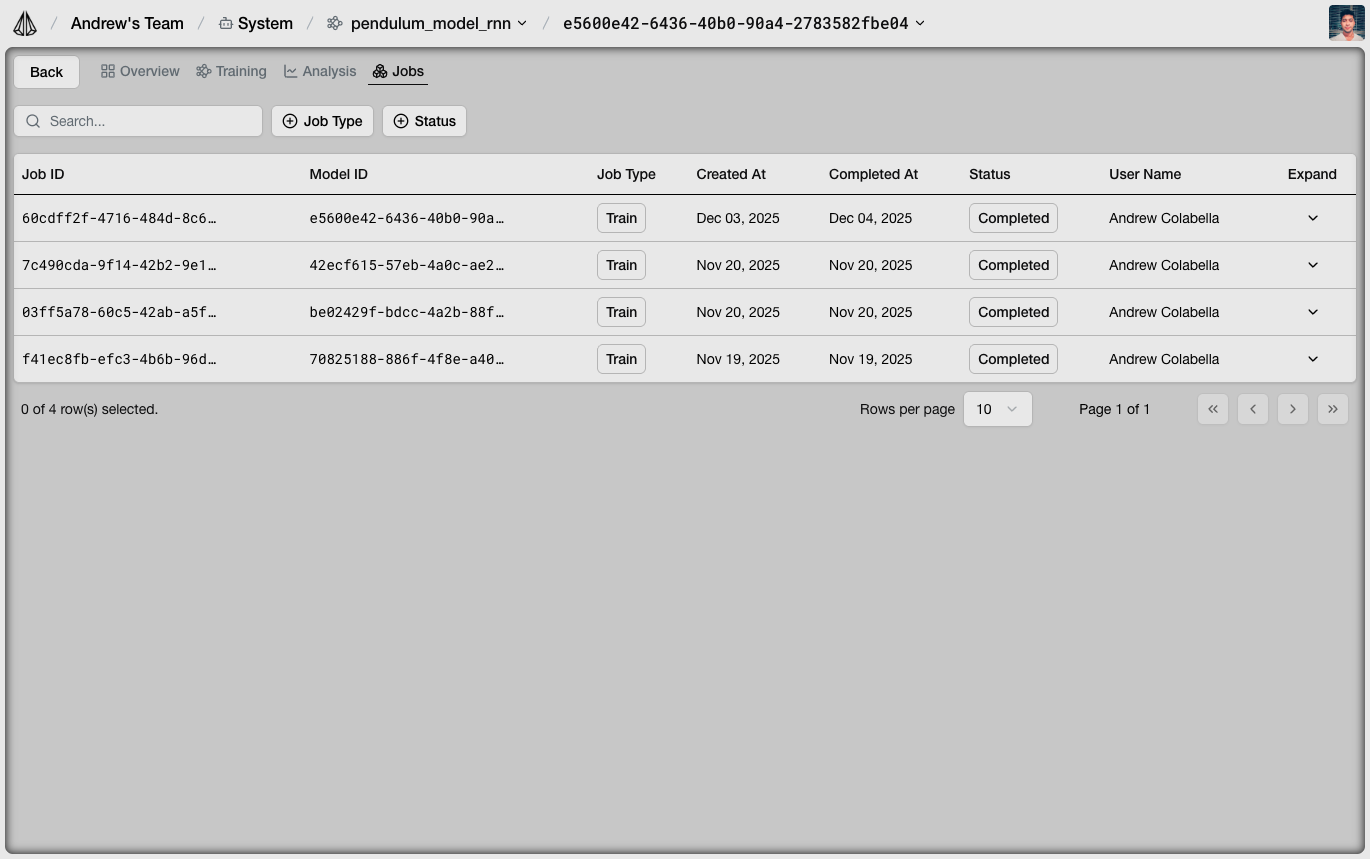
- Status: Queued, Running, Completed, Failed
- Model name: Target model for this job
- Dataset: Source training data
- Progress: Iterations completed
- Metrics: Final loss values
Model Details
Click on a model to view detailed information: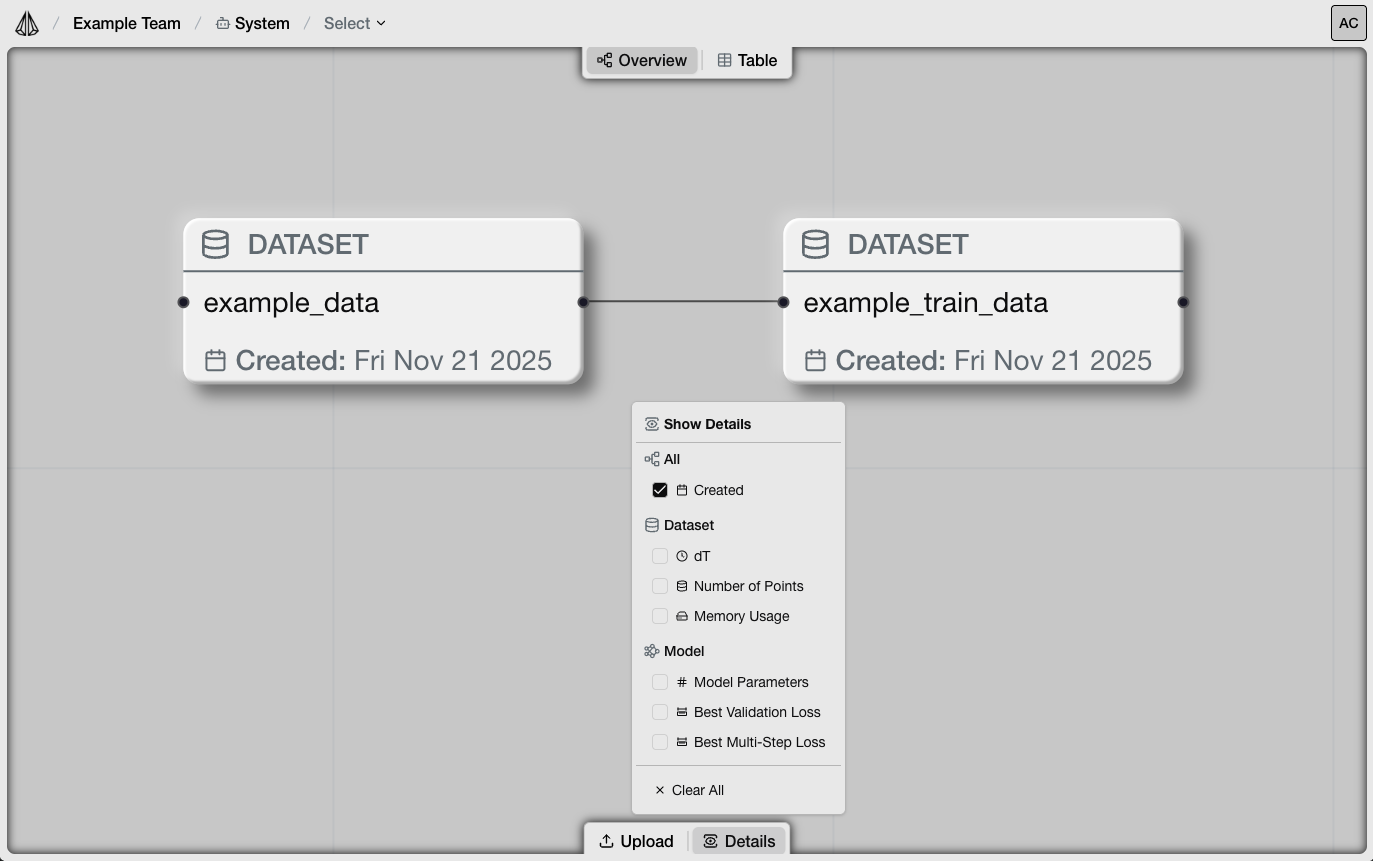
Overview
- Configuration: Architecture, hyperparameters, features
- Training history: Loss curves over iterations
- Source dataset: Which data trained this model
Versions
Each training run creates a new model version. The platform tracks:- Version ID
- Training date
- Final metrics
- Configuration differences
Test Predictions
Visualize model predictions on test data:- Ground truth: Actual values from dataset
- Predictions: Model outputs
- Error: Difference between predicted and actual
Lineage Tracking
View the complete data-to-model lineage: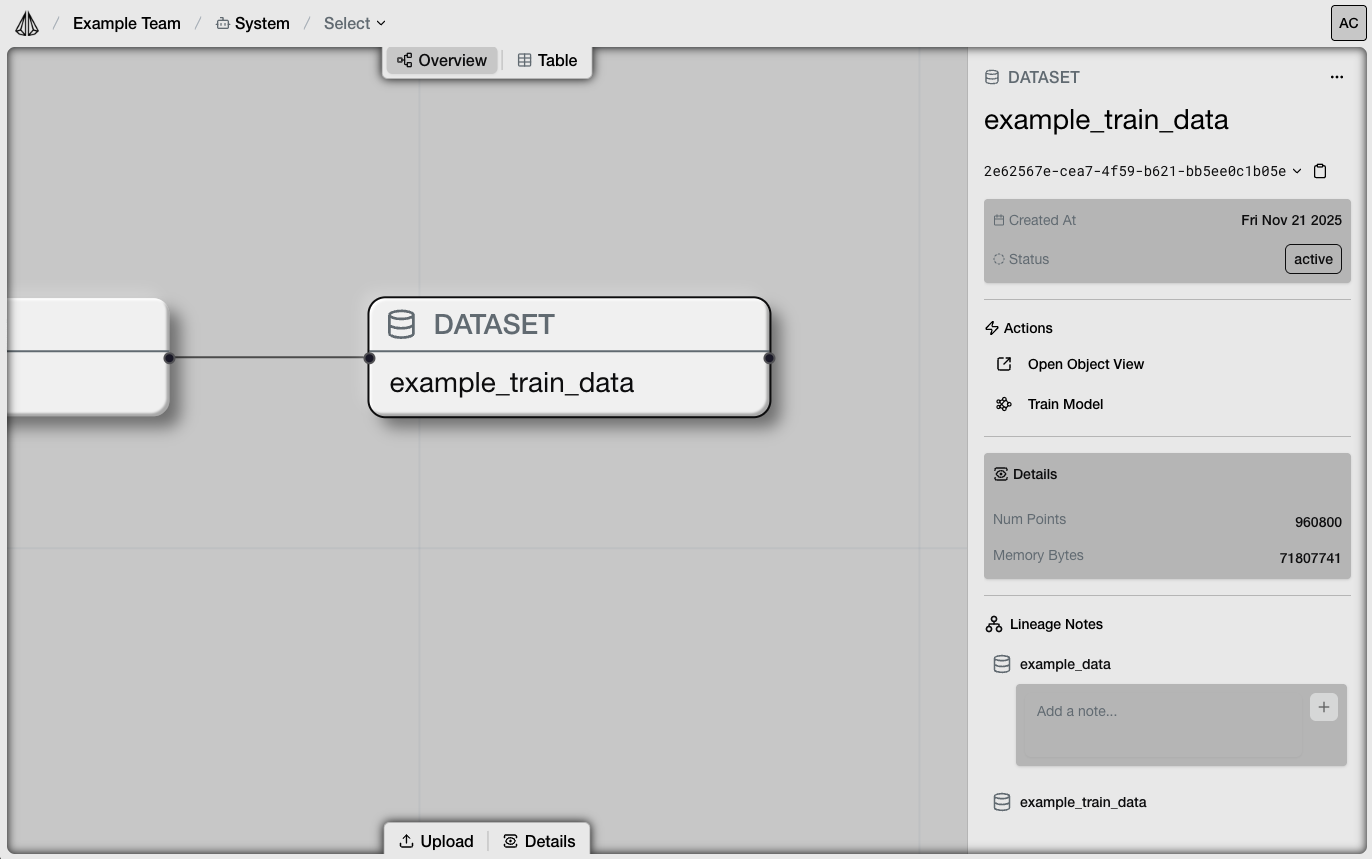
- Which raw datasets were processed
- Which training datasets were created
- Which models were trained from each dataset
- Version history for each object
Comparing Models
To compare multiple models:- Select models from the Table view
- Click “Compare”
- View side-by-side metrics and configurations
- Architecture differences
- Hyperparameter differences
- Loss curve overlays
- Final metric comparison
Downloading Models
Via Platform
- Navigate to the model
- Click “Download”
- Save the
.ptfile locally
Via SDK
Understanding Metrics
Single-Step Loss
- Measures one-step prediction accuracy
- Lower is better
- Good baseline metric for model quality
Multi-Step Loss
- Measures trajectory simulation accuracy
- More relevant for deployment
- Sensitive to error accumulation
Interpreting Values
| Loss Range | Interpretation |
|---|---|
| < 0.001 | Excellent fit |
| 0.001 - 0.01 | Good fit |
| 0.01 - 0.1 | Moderate fit, may need improvement |
| > 0.1 | Poor fit, check configuration |
Loss values are relative to your data. Compare across models trained on the same dataset.
Optimization Results
For optimization jobs, additional information is available:Trial Comparison
- Each trial’s configuration
- Metrics for each trial
- Best trial identification
Hyperparameter Analysis
- Which parameters had the biggest impact
- Correlation between parameters and performance
- Recommended configurations
Managing Versions
Setting Default Version
- Navigate to the model
- Go to Versions tab
- Click “Set as Default” on your preferred version
load_model() without a version ID.
Deleting Versions
- Navigate to the model version
- Click “Delete”
- Confirm deletion
Exporting Results
Export Metrics
Download training metrics as CSV:- Loss history
- Learning rate schedule
- Validation metrics
Export Configuration
Download model configuration as JSON:- Architecture parameters
- Feature definitions
- Training settings