

Key Features
System Overview
Visualize your complete data and model lineage with interactive node graphs
Dataset Management
Upload, process, and explore your hardware data
Training Jobs
Monitor training progress with real-time loss curves and predictions
Model Analysis
Compare model versions and visualize performance metrics
When to Use the Platform vs SDK
| Task | Platform | SDK |
|---|---|---|
| Upload data | Quick uploads, drag-and-drop | Programmatic uploads, large datasets |
| Configure features | Visual feature selection | Code-defined feature relationships |
| Start training | Simple configurations | Complex configs, automation |
| Monitor progress | Real-time visualizations | Terminal output |
| Compare models | Side-by-side charts | Programmatic analysis |
| Download models | One-click download | load_model() |
Platform Layout
System Overview
The main dashboard shows your complete data lineage: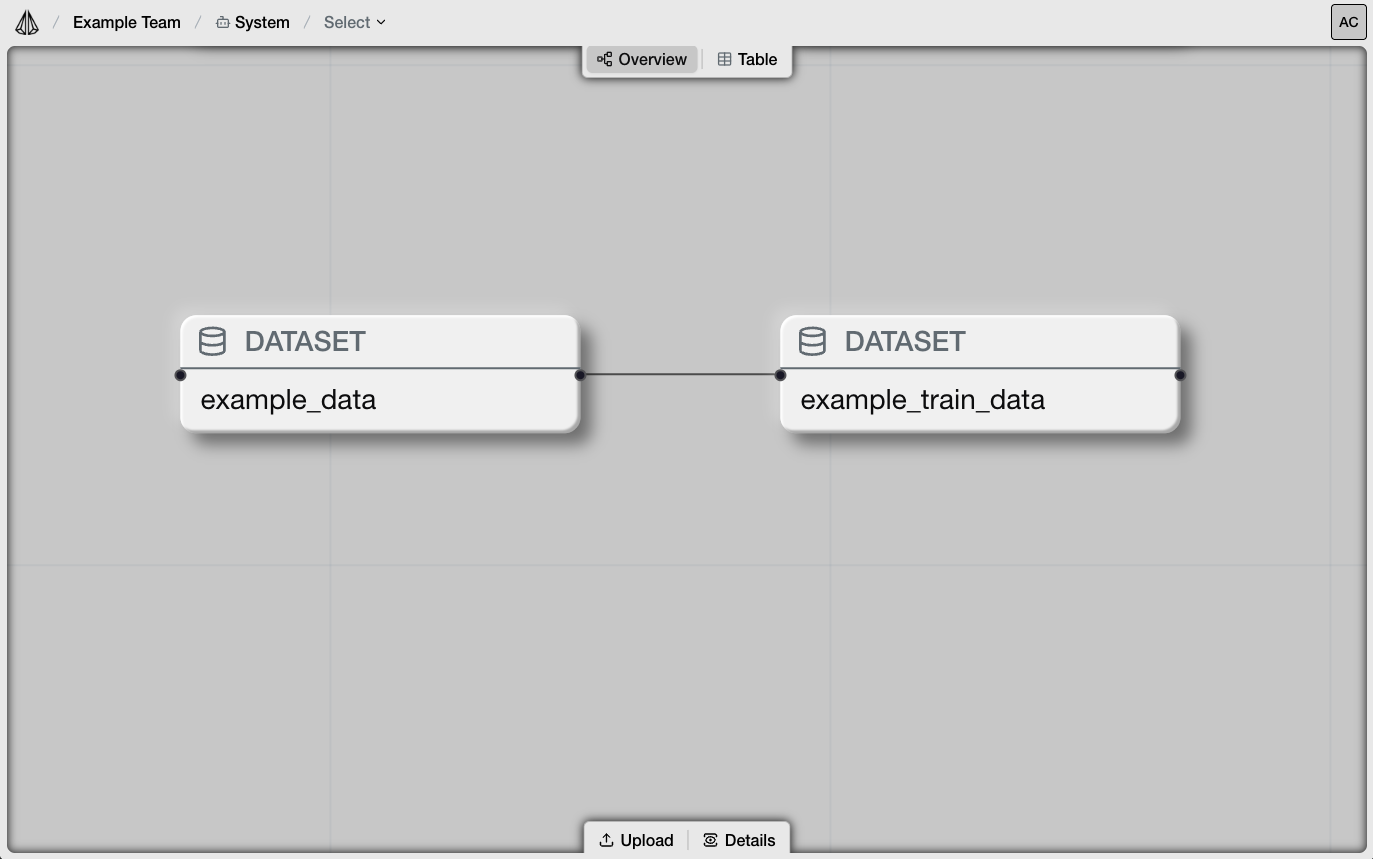
- Node Graph: Interactive visualization of datasets and models
- Table View: List of all objects with versions and metadata
- Lineage Tracking: See which datasets trained which models
Navigation
- Select breadcrumb: Navigate to specific objects
- Inspector panel: Quick view of selected object details
- Tool palette: Upload, create, and manage objects
Getting Started
- Sign up at engine.onyx-robotics.com
- Explore the example datasets included with your account
- Upload your own data using the Upload button
- Train a model using the platform or SDK
Example Workflow
Account Settings
Access settings via the profile icon in the top right:- API Keys: Generate keys for SDK authentication
- Team Management: Invite collaborators (enterprise plans)
- Usage: View training credits and storage